How to Merge, Split, and Compress PDFs in Seconds (Step-by-Step Workflow)
Managing PDF files doesn't have to be complicated. This guide walks you through a simple, structured workflow to merge multiple PDFs into one, split out only the pages you need, and compress large files for faster sharing — all in just a few steps.
PDF files are very common in our everyday digital work. People use them for reports, assignments, invoices, scanned documents, contracts, presentations and what not. Since PDFs maintain formatting across so many devices, they are widely preferred for consistent document sharing and storage.
However, handling multiple PDF files can quickly become confusing. Large files may be difficult to email. Some documents contain unnecessary pages. Others need to be combined into a single file for better organisation. This is why understanding how to merge, split, and compress PDF files efficiently has become important for students, professionals, and remote teams.
A simple document workflow can save time and reduce clutter. Once you understand the process, managing PDF files becomes much easier. This guide explains a complete step-by-step workflow for merging, splitting, and compressing PDFs in a fast and organised way.
Understanding PDF File Management
PDF file management refers to the comprehensive process of organising, editing, optimising, and handling PDF documents efficiently without any mess.
People usually perform three common actions during digital document handling:
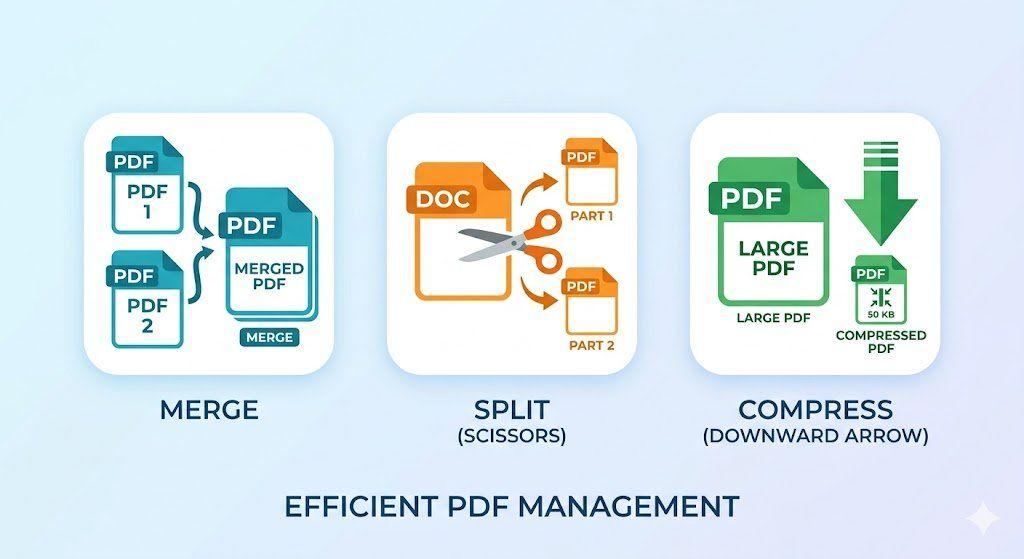
- Merging multiple files into one document
- Splitting pages from large documents
- Compressing files to reduce the overall PDF size
These actions truly improve productivity with PDFs and simplify everyday document tasks significantly.
A structured PDF file management workflow also eliminates possible confusion during document processing.
Good PDF handling offers several benefits:
- Faster document organization
- Easier sharing
- Reduced storage usage
- Better file accessibility
- Improved workflow efficiency
Understanding the complete PDF management system helps users avoid unnecessary file duplication and confusion later.
How to Merge PDF Files
Combining documents is one of the most common PDF tasks. Many users need to combine PDF documents for reports, presentations, research files, or scanned records.
Understanding how to merge, split, and compress PDF workflows begins with proper file merging.
Step-by-step workflow
Here’s a quick step-by-step workflow guide for the entire process:
1. Upload multiple files
Start by selecting the PDF files that need to be combined
Ensure the following aspects:
- All the files are complete
- File names are clear
- Any duplicate copies are removed
This improves overall document processing efficiency.
2. Arrange file order
Next, organise all the files you chose in the correct sequence.
For example:
- Cover page at the beginning
- Main content page in the next part
- Supporting pages at the end
Without the correct order, you may end up being confused regarding the file sequence. This prevents potential confusion later.
3. File merge
Then, start the entire PDF merge process.
The system combines all your selected files into one document. This step usually takes only a few seconds, depending on file size.
4. Download output
Finally, download the entire merged document.
Before saving the document permanently, always ensure the following:
- Open the entire file and review quickly
- Check page order
- Confirm formatting consistency
This ensures overall smooth digital document management.
Use cases
People often merge PDF files online for different purposes.
Common examples include:
Reports
Monthly reports are often created separately and later merged into one organised file.
Assignments
Students combine cover pages, projects, and appendices into a single submission.
Scanned documents
Scanned pages from different sources can be merged into one clean archive.
A proper merging process improves the PDF optimisation process and simplifies document storage.
How to Split PDF Files
Large PDF files often contain unnecessary pages. Splitting allows users to separate only the required sections.
Many users search for ways to split PDF pages for easier sharing and organisation.
This process is an important part of an efficient file optimisation workflow.
Step-by-step workflow
1. Upload a PDF file
First, choose the document you want to divide.
Before uploading:
- Review total pages
- Identify required sections
- Note important page numbers
This prevents any possible accidental page removal.
2. Select page range
Next, select the pages you want to extract.
You may:
- Separate single pages
- Extract chapters
- Divide large sections
- Create multiple smaller files
This helps users quickly extract pages from PDF documents in no time.
3. Execute the split process
Then, start the splitting process of your files.
The system separates the selected pages into independent files.
Depending on the workflow, multiple files may be created automatically.
4. Download separated files
Finally, save the newly created documents.
Check:
- Page sequence
- Missing pages
- Naming structure
Clear file names improve document workflow optimisation later.
Use cases
Splitting PDF documents is useful in many situations.
Chapter extraction
Students often separate chapters from study materials for easier reading.
Page sharing
Professionals may share only relevant pages instead of entire documents.
File segmentation
Large contracts or reports can be divided into smaller sections for better management.
Learning how to organise PDF documents efficiently improves overall workflow productivity.
How to Compress PDF Files
Large PDFs directly mean slower uploads, higher storage consumption, and email attachment issues. This is when compressing the files can actually make a difference.
Many users search for ways to compress pdf without losing quality because they want smaller files without blurry text or distorted images.
Compression is a key part of every PDF optimisation process.
Step-by-step workflow
1. Upload file
First, select the PDF document that needs size reduction or compression.
Large scanned files usually benefit the most from compression.
2. Choose compression level
Next, select the right compression strength.
Common options include:
- Low compression
- Balanced compression
- High compression
Higher compression quickly reduces the size further but may affect overall image clarity. Choose as per your requirements.
3. Process file
Then, start the PDF compression process.
The system optimises all the images, removes unnecessary data, and reduces file weight.
This improves overall file processing efficiency.
4. Download optimised PDF
Lastly, download the entire compressed document.
Before you share the document, check for the following:
- Open your PDF file
- Check complete text readability
- Review image quality
- Confirm overall page formatting
This effectively helps users reduce PDF file size without damaging document usability at all.
Use cases
Compression supports way better digital document handling in daily workflows compared to the traditional options.
Email sharing
Smaller PDFs are much easier to send through email attachments due to effective PDF compression.
Storage reduction
Compressed files consume less device and cloud storage.
Upload optimization
Many websites limit upload sizes. Compression helps meet those limits.
Efficient compression also supports large PDF file handling method strategies for professional workflows.
Recommended PDF Workflow Process
Many users perform PDF tasks randomly. However, a structured workflow saves time and prevents mistakes.
A proper PDF file management workflow usually follows three steps.
Step 1: Split unnecessary pages
First, remove any unwanted sections from your PDF.
This ensures that your document is smooth and clean. It eliminates clutter before you combine for better document processing efficiency.
Examples include:
- Blank pages
- Duplicate pages
- Irrelevant appendices
Step 2: Merge required sections
Next, start by combining all the necessary documents into one organised file.
Arrange content logically for easier reading and sharing in the future.
This supports a better digital PDF handling process management.
Step 3: Compress the final document
Finally, reduce the file size of the completed document.
This creates a cleaner and lighter final PDF for storage or sharing.
Following this workflow improves:
- File organization
- Sharing speed
- Storage efficiency
- Productivity with PDFs
Understanding how to merge, split, and compress PDF tasks in the correct order creates a smoother workflow that is extremely important in critical environments.
Common Mistakes in PDF Handling
Many users accidentally damage files or create confusion during PDF processing.
Avoiding these mistakes improves document workflow optimisation.
Over-compression
Very high compression may reduce image quality and make text difficult to read.
Always review your compressed files before sharing.
Wrong page selection
Incorrect page ranges may easily remove important information from your PDF.
Double-check selected pages before splitting documents.
File duplication
Saving multiple copies with unclear names creates a lot of confusion later.
Always use organised naming systems for better digital document management.
Not maintaining backup
Always keep the original files before editing.
Backups are always the saviour. They actually help recover lost pages or formatting issues.
Avoiding these common problems improves long-term PDF workflow efficiency.
FAQ
Q1: How can I merge multiple PDF files into one document?
Start by uploading the files you want to combine. Next, arrange them in the right order. Then start the PDF file merging process. Once done, quickly download the final file, and that’s it.
Q2: What is the easiest way to split PDF pages?
To split your PDF pages, start by uploading the document. Choose the required page range.
To split PDF pages, upload the document and choose the required page range. Then, run the PDF separation process to create smaller files. This workflow helps users extract pages from PDF documents and divide PDFs into multiple files for easier sharing and organisation.
Q3: How can I compress PDF files without losing quality?
To compress your PDF without losing the quality, start by creating a balanced compression level instead of simply choosing the maximum compression. This will reduce the overall PDF size online while still preserving overall readability and image clarity of the document.
Q4: What is an efficient PDF file management workflow?
A proper PDF file management workflow starts with removing any unnecessary pages. Next, organise you file and merge the required files. Finally, compress the completed document for storage or sharing.
Q5: What is the best method to handle large PDF files?
The best large PDF file handling method is to split oversized files into smaller sections before merging the necessary content again. After that, compress the final document using proper file size reduction techniques. Following these best PDF workflow steps creates a cleaner and more manageable PDF document processing guide for daily use.
Conclusion
Managing PDF files does not need to be complicated. Once users understand the correct workflow, handling documents becomes much faster and more organised.
A simple process helps users:
- Merge related documents
- Split unnecessary pages
- Compress files for easier sharing
Learning how to merge, split, and compress PDF workflows improves productivity and reduces digital clutter. It also creates a cleaner and more efficient approach to document processing and digital document handling.
By following a structured workflow, users can maintain better organisation, optimise storage, and simplify daily file management tasks with confidence.
Related Articles
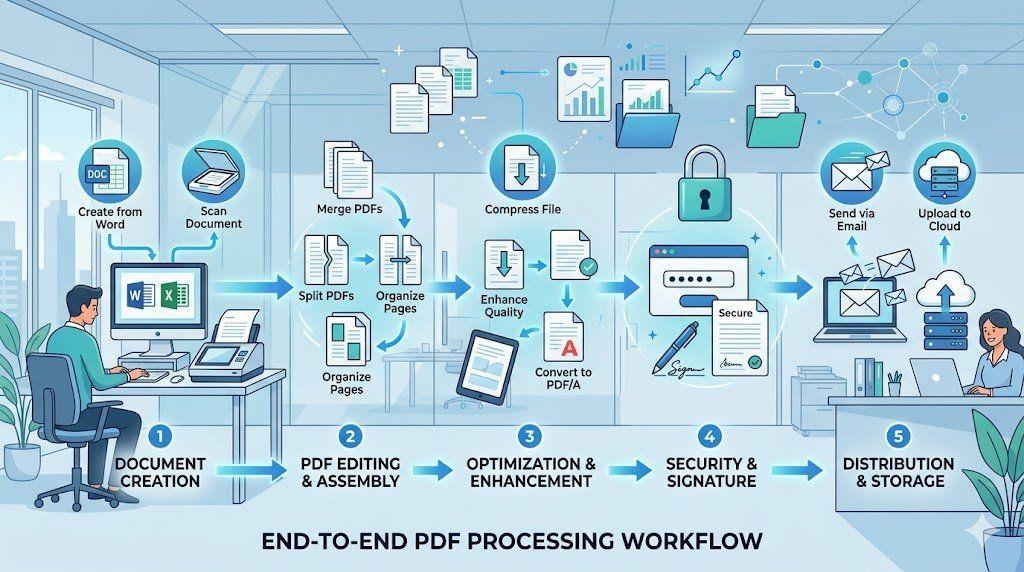
End-to-End PDF Processing System for Office Work
Learn how to implement a complete end-to-end PDF processing system for office work. This step-by-step guide covers everything from document creation and scanning to organization, optimization, security, and seamless distribution — helping teams eliminate chaos, reduce file sizes, and boost productivity with a structured PDF workflow

How to Merge Multiple PDFs in Under 30 Seconds – Free & No Sign-Up Required
"Merge multiple PDFs online for free in under 30 seconds with VelaPDF. No sign-up, no watermarks, no limits. Simply drag & drop files, reorder, and combine them instantly in your browser — fast, secure, and beginner-friendly.
The Ultimate PDF Workflow Guide for Teams & Professionals
Most teams lose hours every week dealing with messy PDF workflows, scattered tools, version confusion, and repetitive document tasks. This guide explains how businesses can streamline document workflow management using smarter PDF systems, OCR tools, batch processing, and secure collaboration platforms like Velapdf.
Related Tools
Ready to optimize your PDFs?
Experience the world's fastest PDF tools today.