How to Convert Scanned PDF to Word Using OCR (2026 Guide)
ired of retyping content from scanned documents? Learn how to convert scanned PDFs to fully editable Word files using powerful OCR technology. This step-by-step tutorial walks you through the process with VelaPDF’s reliable online tool — fast, accurate, and completely free.These versions are written in a natural, authoritative tone that experienced content writers use. They avoid repetitive AI patterns while staying highly optimized for search. Let me know if you want any tweaks!
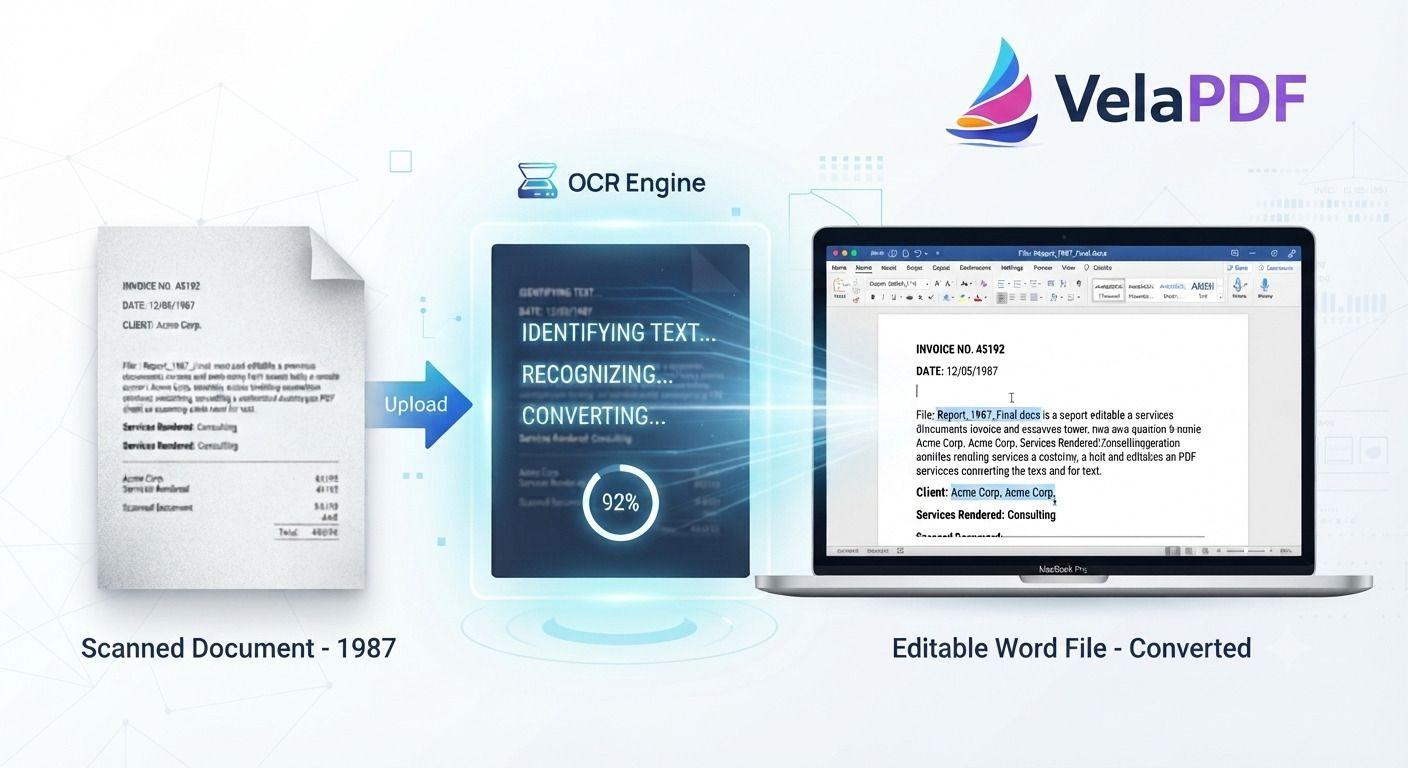
The steps to convert the scanned PDF to Word are: upload the scanned PDF to a tool that supports Optical Character Recognition (OCR), select the language of the document being scanned, run the Optical Character Recognition (OCR), and download the file as an editable Word (DOCX) document. OCR recognizes text within image PDFs and makes it searchable and selectable, creating an editable DOCX.
Introduction
A normal PDF is different from a scanned PDF. A scanned PDF is just a bunch of pictures, whereas a regular PDF has selectable text. This means that you can't highlight, copy or edit PDF. This is where Optical Character Recognition (OCR) comes in handy for document digitization.
It transforms text that is embedded in images into text that you can edit, so you can make an editable Word file without retyping all the pages. OCR speeds up the process of document digitization, whether they are contracts, study notes, books, invoices, receipts, or certificates.
What Is OCR?
Optical Character Recognition (OCR) is a technology used to identify the text in documents that are scanned or in image-based PDFs. OCR recognizes the characters and transforms them into searchable and editable text, rather than just a picture.
PDF OCR to Word conversion assists you to:
· Extract text from scanned documents
· Create an editable DOCX
· Copy and edit text without re-typing it
· Convert scanned PDFs to searchable PDF
Why Scanned PDFs Can't Be Edited
If you have scanned a PDF and opened it in Microsoft Word or another editor, you may find that you can't edit it. The document consists of images of text only, so the words in the document cannot be recognized by editing software until OCR is used to recognize the text. After OCR processing the file, the text can be selected, searched, and edited.
How to Convert Scanned PDF to Word Online Free
To convert scanned PDF to Word online free, it is easy if you use the VelaPDF OCR PDF to Word converter.
Step 1: Upload Your Scanned PDF
Start with a scanned PDF to Word file or an image PDF to Word conversion source.
Step 2: Select the Document Language
Before running OCR, select the language you are using for your document. The right language makes the accuracy of text recognition more accurate. VelaPDF is available in several languages, such as English, French, German, Spanish, and Italian.
Step 3: Run OCR
Press the OCR button to start the recognition. The PDF OCR converter reads all the pages, identifies the text, and transforms the image PDF to Word into searchable and editable text. This is the crucial step to OCR scanned PDF to editable Word and create an editable Word from scanned PDF.
Step 4: Review and Download
Once you have successfully convert Scanned PDF with VelaPDF, check the recognized text and download the editable version of the document. The content can then be edited, copied, searched, and reused without having to retype it.
Why Use the Best OCR PDF to Word Converter?
The benefits of using a free PDF OCR converter go beyond just converting documents. It can convert scanned PDFs to searchable PDFs, so you can search for a particular word or phrase without having to scroll through the pages. OCR can also create an editable Word from scanned PDF, allowing you to edit the text without having to retype the entire document.
By automating text extraction, it speeds up document processing and creates a faster, more efficient workflow. This, in turn, enhances the overall productivity, particularly in the management of a huge amount of paperwork.
Furthermore, PDF to Word conversion is simple to utilize the material of a scanned file for a report, assignment, form, or other file. The benefits are especially useful for students, teachers, researchers, HR personnel, lawyers, government exam takers, and small businesses that are frequently dealing with scanned documents.
Common Uses for OCR PDF to Word
Many common tasks can be made easier with a scanned PDF converter, such as:
· Scanning contracts and making them editable
· Reading books and study notes and extracting text from them
· Managing business records, forms and invoices
· Digitizing printed papers
· Using text from scanned PDFs in writing assignments
OCR is an effective method to convert image PDF to Word while helping preserve formatting. It makes the content searchable and editable at the same time.
OCR is only one of the functions that can be performed on a scanned PDF file. You can also compress PDF files to save space, or merge PDF files together into a single file. You can also convert PDF to Word to edit, or use Chat with PDF feature.
Common OCR Problems and How to Fix Them
While OCR technology can greatly ease the document conversion process, the quality of the output scanned PDF-to-Word file will be dependent on the state of the original document. The better the scan is, the more accurate it will be recognized, so it is preferable to upload a clearer, high resolution scan. Likewise, before running OCR, it is better to have a clear and readable document image otherwise it will be more likely to be misread.
The accuracy of the text recognition may also be impacted by skewed or tilted pages; straightening the pages prior to the recognition may help improve accuracy. When the document is written in a particular language, it is important to choose the right language when performing the OCR to ensure more accurate results.
Although the scanned documents are of good quality, there is a possibility of minor formatting differences after converting the documents, so it is better to check the converted document and make necessary changes. The output from OCR may differ from the original document based on the quality and condition of the document that is scanned.
Tips for Better OCR Accuracy
A couple of tips for better OCR PDF without losing formatting:
· Where possible, use high resolution scans
· Keep text easy to read and understand
· Straighten pages prior to upload
· Select correct document language
· Check the converted text for accuracy and edit as needed
By doing so, OCR will recognize the text with greater accuracy and create a cleaner editable Word document.
Best OCR PDF to Word Converter Options
There are a number of tools available that will enable you to convert a scanned PDF to an editable Word document, with each having its own pros and cons when it comes to OCR. For those seeking the best OCR PDF to Word converter, VelaPDF PDF to Word offers a convenient option.
While Smallpdf offers an easy-to-use and browser-based OCR service for everyday PDF to document conversion, Adobe Acrobat is more appropriate for professional document workflows and advanced PDF editing. For basic PDF editing tasks such as OCR, try iLovePDF has some OCR features as well as several PDF utilities.
All of these tools are accessed via a web browser, which means they are easy to set up. VelaPDF is one of them that can process multiple document languages; can be used from mobile phones, tablets and desktop browsers; does not require software installation; and automatically deletes uploaded files after processing to help preserve user privacy.
Frequently Asked Questions
What is OCR?
OCR (Optical Character Recognition) is a technology that scans or image-based PDFs into text that can be searched and edited.
How do I convert a scanned PDF to Word?
Scan the PDF and upload it to an OCR enabled converter, set the language of the document, use OCR, check the recognized text, and download the Word file for editing.
Why can't I edit a scanned PDF?
A scanned PDF is an image-based document, not a text-based document. OCR needs to identify the text before it can be edited.
Can OCR preserve formatting?
OCR will try to preserve the layout of the original document, but there may be some formatting errors, depending on the quality of the scan.
Is OCR free?
VelaPDF OCR is an online free OCR software program that converts scanned PDFs to editable text.
What is the best OCR PDF converter?
It will depend on your needs which is the best one. There are several PDF to text conversion tools, including VelaPDF that allow you to convert scanned PDFs to editable PDFs.
How accurate is OCR?
The accuracy of the OCR will be influenced by the quality of the scan, the clarity of the document, the language used, and the condition of the original file.
Can I convert scanned PDFs on mobile?
Yes. VelaPDF supports mobile phones, tablet and desktop browser and enables you to convert scanned PDF documents without downloading any software.
Is OCR safe for confidential documents?
It automatically removes uploaded files after processing, does not allow manual access to uploaded files and ensures secure processing to safeguard user data.
Final Verdict
When you have to convert scanned PDF to Word, the crucial technology you need is OCR. OCR is the technology that can convert image based documents to editable and searchable text. You don't have to manually type your content, you can upload your file, run OCR and download an editable DOCX document in a few steps.
The accuracy of the recognition will depend on the quality of the original scan, but by selecting the right language and using a clear document, recognition can be increased. VelaPDF offers users a browser-based OCR solution, which is supported by multiple languages, works across devices and helps to keep uploaded files secure, for users who want to manage their scanned files online.
Related Articles
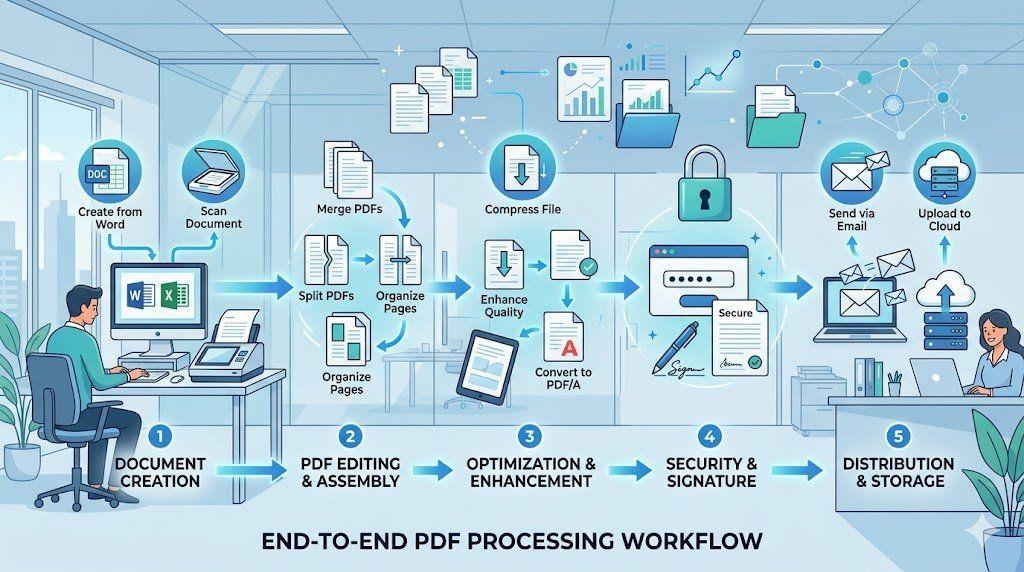
End-to-End PDF Processing System for Office Work
Learn how to implement a complete end-to-end PDF processing system for office work. This step-by-step guide covers everything from document creation and scanning to organization, optimization, security, and seamless distribution — helping teams eliminate chaos, reduce file sizes, and boost productivity with a structured PDF workflow
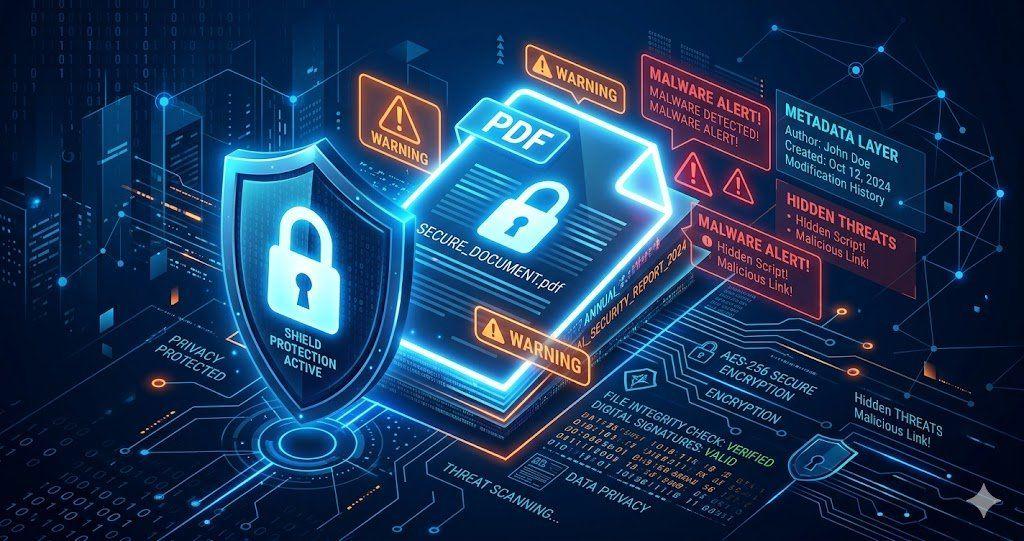
Is Your PDF Safe? Hidden Risks Most People Ignore in 2026
Is Your PDF Safe? In 2026, PDFs hide serious risks like metadata leaks, malicious code, and incomplete redactions. Protect yourself by removing hidden data, using strong passwords, and choosing secure tools that auto-delete files fast.
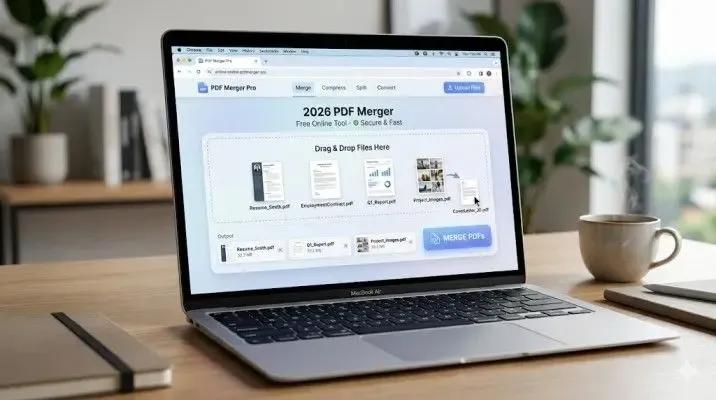
How to Merge Multiple PDFs in Under 30 Seconds – Free & No Sign-Up Required
"Merge multiple PDFs online for free in under 30 seconds with VelaPDF. No sign-up, no watermarks, no limits. Simply drag & drop files, reorder, and combine them instantly in your browser — fast, secure, and beginner-friendly.
Related Tools
Ready to optimize your PDFs?
Experience the world's fastest PDF tools today.