Convert PDF to Images Online Free – Save PDF Pages as Images
Convert pages to PNG/JPG/TIFF.
A PDF file is useful for documents, but image files are often easier to share. That’s why VelaPDF offers a simple PDF to images converter online that easily turns your PDF pages into JPG or PNG files in just a few clicks.
With PDF to image tool free, every page is saved as a separate image, so you can post it on social media, add it to a website, or send it on mobile. To use the converter, you don’t need to install any software, just open the tool in your browser through our PDF Utilities Hub.
This content will help you learn how to convert PDF to images online free on VelaPDF.
What is a PDF to Images Converter?
A PDF to image converter of VelaPDF changes PDF pages into image formats like JPG or PNG. Instead of keeping the document in one PDF file, the tool saves each page as a separate image.This process is useful for visual document export, page rendering PDF tasks, and easy sharing across websites or mobile devices.
How to Convert PDF to Images Online
To convert PDF pages to JPG high quality, follow the steps:
- Upload Your PDF on VelaPDF by selecting file from your device.
- Choose output settings by picking JPG or PNG. Select layout and adjust settings as needed.
- Now, choose DPI such as 300 for high-quality results.
- Start the process and let the VelaPDF PDF pages to images tool create image files.
- Once done, save single files or all pages together after conversion.
If you’re looking for web-compatible pages after conversion of PDF to images, you can also Convert PDF to web-ready HTML.
Benefits of an Online PDF to Image Tool
If you’re looking for an online tool to convert PDF into images for free, VelaPDF is the smartest option, as it works directly in your browser and supports all major devices.
Main benefits include:
- No software installation
- Works on desktop and mobile
- Browser-based conversion
- Fast processing
- Instant downloads
- Easy file sharing
- Worldwide accessibility
You can quickly convert files from Windows, macOS, Android, or iPhone without extra setup.
What Are the Uses of PDF to Image Conversion Tool
There are lots of uses of PDF to Image conversion in a real-life, including:
- Social media content for posts and carousels
- Presentation slides with ready visuals
- Website preview images for landing pages
- Design mockups and creative references
- Educational material for students
- Portfolio sharing with clients
If you need to work further on your PDF and want only pictures inside a PDF, you can choose to Extract original images from PDF online tool of VelaPDF.
Is VelaPDF Safe to Use?
Yes, it is safe to use VelaPDF because we focus on privacy and secure processing.
- All uploads use encrypted connections to keep your files protected during conversion.
- Your files are automatically deleted within 10 minutes after processing.
- There is no permanent storage, no manual access, and no unnecessary file retention.
- This makes the tool safer for personal and professional documents.
Do you want content where you can edit something, try Convert PDF into editable document.
Conclusion
VelaPDF gives you a fast and simple way to convert PDF to images easily. Use our PDF to images converter online to save pages as JPG or PNG, share content easily, and improve compatibility across devices.
No matter what your need is, previews, posts, or design assets, this is one of the best PDF to image tool online options to try. So why wait? use VelaPDF and convert your files now.
Frequently Asked Questions
Related Tools
Related Articles
The Ultimate PDF Workflow Guide for Teams & Professionals
Most teams lose hours every week dealing with messy PDF workflows, scattered tools, version confusion, and repetitive document tasks. This guide explains how businesses can streamline document workflow management using smarter PDF systems, OCR tools, batch processing, and secure collaboration platforms like Velapdf.
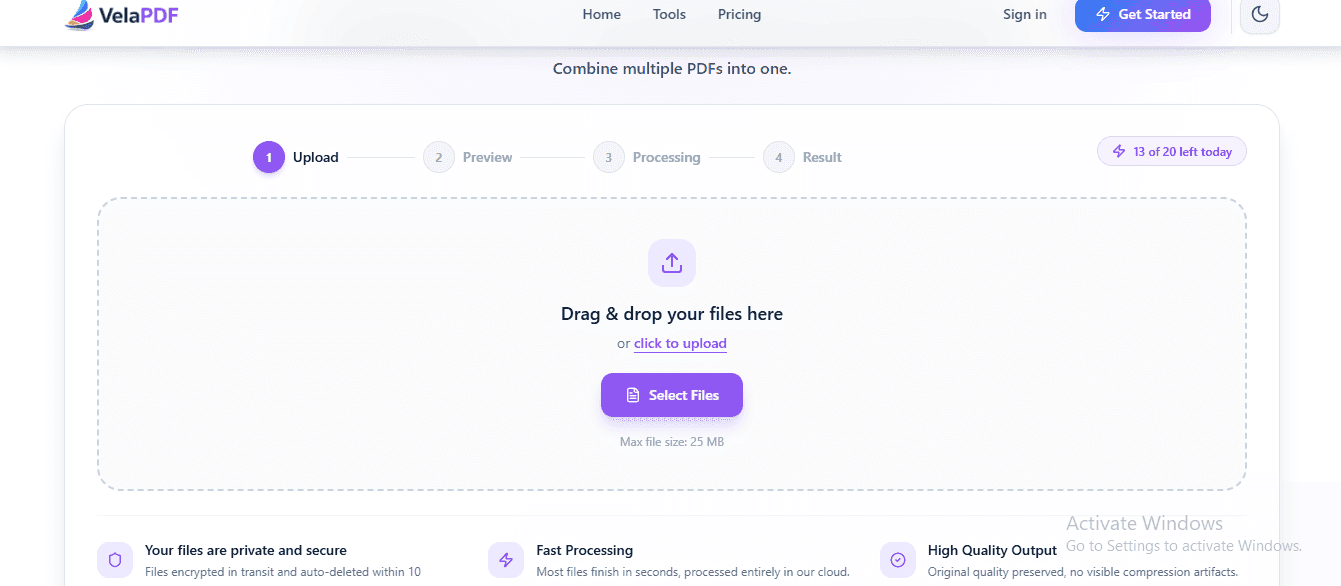
How to Merge PDF Files Online for Free — No Sign-Up Needed
Need to merge PDF files online for free? Skip the software and sign-ups. This guide shows you how to combine multiple PDFs into one clean document in seconds — right from your browser.
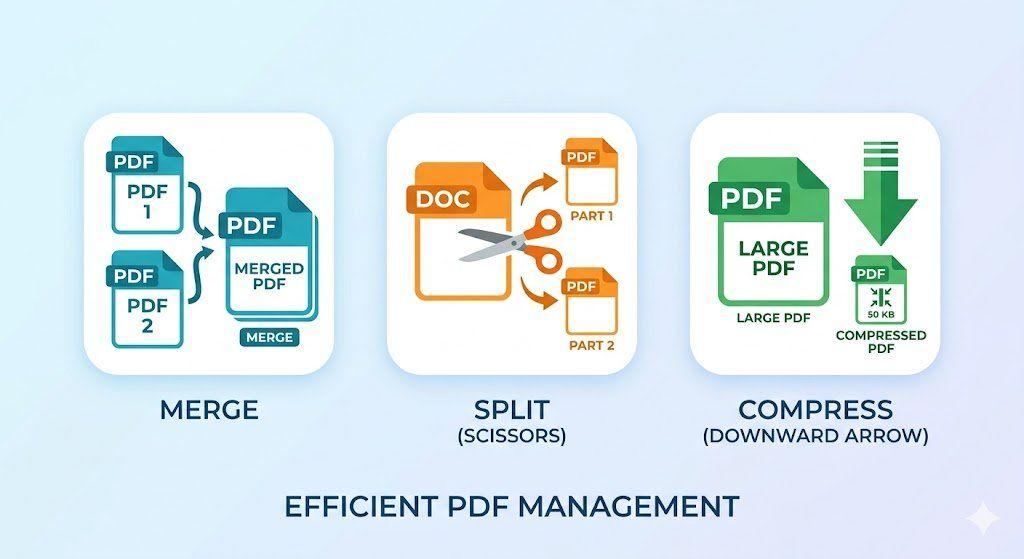
How to Merge, Split, and Compress PDFs in Seconds (Step-by-Step Workflow)
Managing PDF files doesn't have to be complicated. This guide walks you through a simple, structured workflow to merge multiple PDFs into one, split out only the pages you need, and compress large files for faster sharing — all in just a few steps.