Extract Scanned Pages from PDF Online
Apply scanner effects to PDF.
Scanned PDFs often create a small problem. The pages inside them are just images, not real text. That means you can’t copy, edit, or reuse the content easily.
If you only need a few pages, things become even more frustrating. This is where a simple online tool can help. With VelaPDF, you can quickly extract scanned pages from PDF files without any waiting or installing.
It works directly in your browser, so you can extract scanned pages online in seconds. Since our tool accepts files up to 20 MB, if your file is larger, you can use our Compress PDF online tool to reduce its size. This makes extracting scanned pages from a PDF much easier.
Let’s learn how to extract scanned pages from pdf online with VelaPDF in an easy way.
What are Scanned Pages in a PDF?
Scanned pages are image-based pages inside a PDF. They are usually created by scanning physical documents. Unlike normal PDFs, these pages don’t have selectable text. That’s why they are harder to edit or copy from.
That’s why scanned PDFs often need extra steps, like extracting or converting pages, before you can actually use the content properly.
Why Extract Scanned Pages from PDF?
There are many practical reasons to extract pages from scanned files:
- Reuse important scanned documents
- Convert scanned pages into image files like JPG or PNG
- Apply OCR tools later to make text editable
- Remove unwanted or blank pages
- Share only specific sections with others
This extracting process from PDF saves time and keeps your files clean and organized.
How to Extract Scanned Pages (Step-by-Step)
To get scanned pages from pdf, follow these simple steps:
1. Upload your scanned PDF file to the VelaPDF tool.
2. Choose settings based on your needs:
- Random Tilt Style: None, Slight, Moderate, or Strong
- Scan Quality: Low, Medium, or High
- Color Space: Full Color or Grey
3. After that, adjust advanced settings like Rotation Variance, Brightness Multiplier, Resolution.
4. Once done, click/tap on “Extract Scanned Page” and let the tool work on it.
5. Wait a few seconds. Your file will be ready to download.
If you want to reuse content later, you can also extract text from pdf or make changes using the edit pdf online tool available at VelaPDF at free of cost.
Features of Scanned PDF Page Extractor Tool
VelaPDF offers a simple yet powerful solution:
- Works smoothly with image-based PDFs (scanned files)
- No need to download or install anything
- Fast processing, even for bigger files
- Extract pages one by one or in bulk
- Keeps your files safe and private
- Handles large PDFs without slowing down
These features make VelaPDDF a reliable scanned pdf page extractor for everyday use.
Use Cases
Let’s see how people are using scanned pdf page extractor tool in real situations:
- Students extract pages from scanned notes for study
- Businesses separate invoices or bills from bulk files
- Legal teams organize case documents page by page
- Offices archive old scanned records properly
- Readers convert scanned books into images
If you need to combine files later, you can merge pdf files. Or if you want more control, you can again split pdf pages based on your needs.
Conclusion
If you want to extract scanned pages from PDF, it’s not that difficult. With VelaPDF, you can quickly extract scanned pages without software installation.
We’ve made the tool in a way so that you don’t have to wait anymore. The whole process is lightning fast and simple. Even a beginner can use it without having any issue. If you want to explore more PDF tools online, try it now on VelaPDF and manage your files with ease.
Frequently Asked Questions
Related Tools
Related Articles
How to Compress PDF Without Losing Quality (Free Methods)?
Compress PDF without losing quality for free using VelaPDF. Reduce file size quickly while preserving text, images, and layout. Choose low, medium, or high compression — no sign-up, no watermarks, and lightning-fast results in your browser." Need any adjustments?
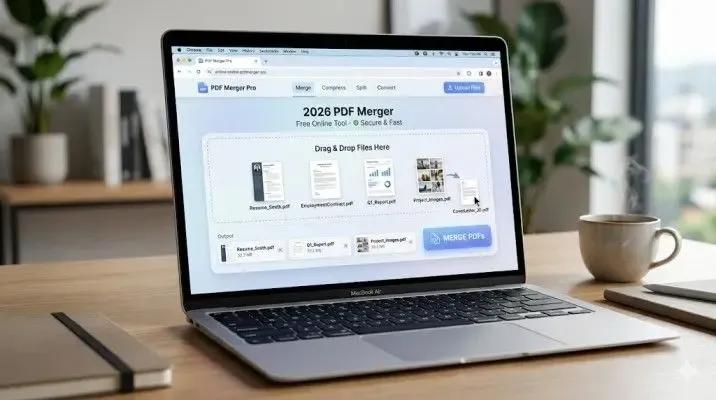
How to Merge Multiple PDFs in Under 30 Seconds – Free & No Sign-Up Required
"Merge multiple PDFs online for free in under 30 seconds with VelaPDF. No sign-up, no watermarks, no limits. Simply drag & drop files, reorder, and combine them instantly in your browser — fast, secure, and beginner-friendly.
Is Your PDF Safe? Hidden Risks Most People Ignore in 2026
Is Your PDF Safe? In 2026, PDFs hide serious risks like metadata leaks, malicious code, and incomplete redactions. Protect yourself by removing hidden data, using strong passwords, and choosing secure tools that auto-delete files fast.