Flatten PDF Online – Make Your PDF Non-Editable Easily
Make form fields non-editable.
PDF files often look final. However, many of them can still be edited after sharing. This can lead to unwanted changes, broken layouts, or altered information, which you don’t want. A simple way to avoid this is to use flatten PDF online before sending it.
When you do this, all elements become fixed and secure. It helps you make PDF non editable while keeping the design exactly the same. Whether you are sharing a form, contract, or report, flattening ensures your file stays clean, consistent, and protected without affecting its quality.
Let’s learn how to use Flatten PDF tool online in an easy way and make PDF non editable.
What Does It Mean to Flatten a PDF?
When we say “Flattening a PDF”, it means turning all editable parts of the file into fixed content. This includes form fields, comments, layers, and other interactive elements. Once done, everything becomes a single, stable layer.
When you flatten PDF form fields, the entered data becomes permanent. No one can change it later. This process also helps lock PDF content, so your file looks the same everywhere.
It’s useful when you’re sharing final versions or official documents.
Key Benefits of Flattening a PDF
Flattening your PDF offers more than just basic protection. It helps in multiple ways:
- It lets you make PDF read only, so no one can edit or tamper with the content
- Keeps formatting intact across devices and PDF viewers
- Improves results when you flatten PDF for printing, avoiding layout issues
- Removes interactive elements like forms and buttons
- Helps create a more secure PDF document for sharing
This is why flattening is a smart step before sending files to clients or anyone.
How to Flatten a PDF Online (Step-by-Step)
Here’s how you can flatten PDF quickly and securely using VelaPDF:
1. Upload your PDF file from your device
2. Choose the “Flatten Forms Only” option if needed
3. Keep the default DPI at 300 or adjust it as required
4. Click on the “Flatten PDF” button
5. Download your file once the process is complete
The entire process is quick and smooth. You can flatten PDF without software and get results in seconds. It’s designed to help you make PDF non editable without any issue.
Why Trust VelaPDF?
At VelaPDF, we focus on keeping your files safe while offering a smooth experience.
- Your uploaded files are automatically deleted within 10 minutes after processing.
- There is no manual access to your documents at any stage.
- Everything is handled through secure systems.
- Your data is protected with encryption during upload and processing.
- VelaPDF also does not keep permanent copies of your files.
You can use the tool with confidence, knowing your information stays secure.
Internal Linking Section
After flattening your PDF file, you may also need other tools for better document management. That’s why, we offer tools like:
- You can use Compress PDF file online → to reduce file size for faster sharing
- You can use Merge PDF files online → to combine multiple documents into one
- You can use Split PDF online → to extract specific pages from large files
- Or, you can use Convert pdf to word online → to edit content when changes are needed
These tools help you manage your PDFs easily in one place.Conclusion
In short, flattening a PDF online is a simple way to protect your content and keep your layout as it is. With VelaPDF, you can do it fast, safely, and without losing quality. Try the flatten PDF online tool now and make your documents secure in seconds.
Frequently Asked Questions
Related Tools
Related Articles
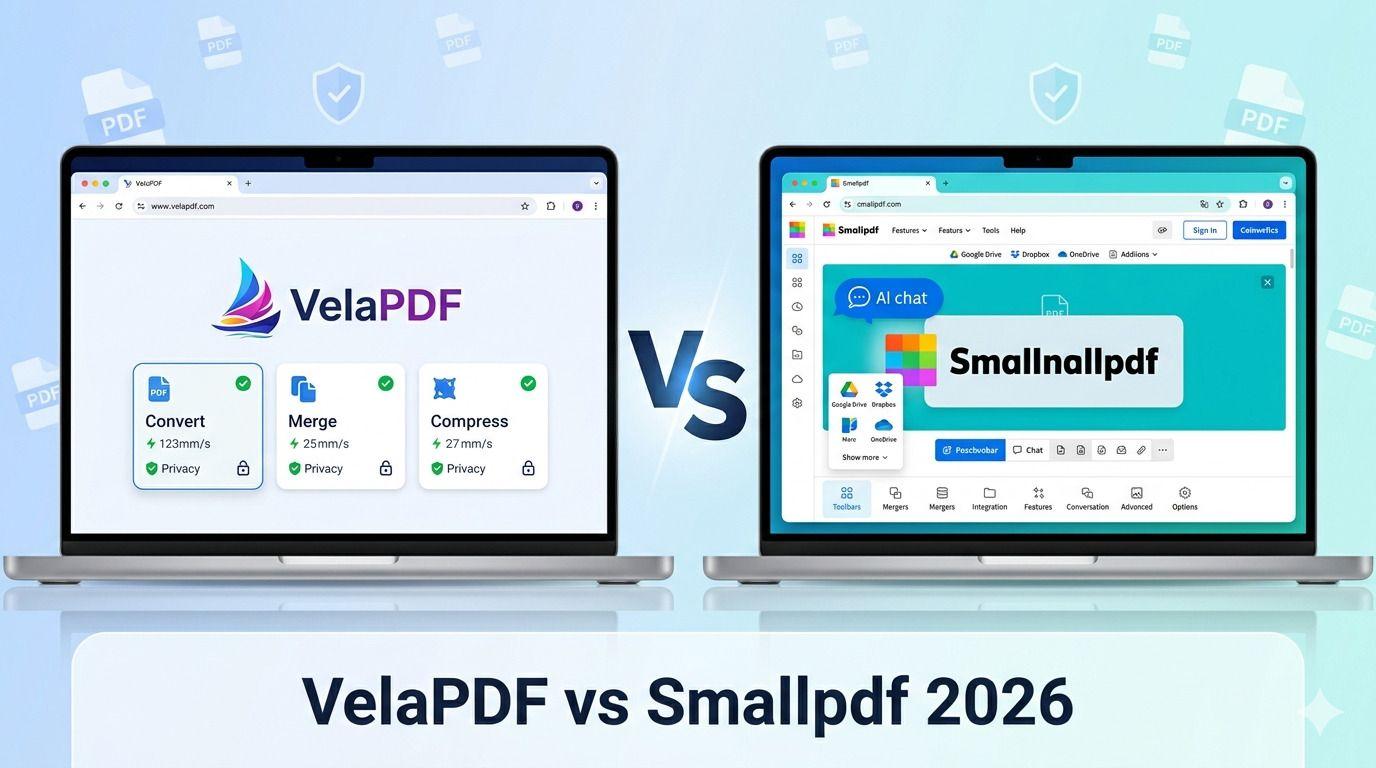
Smallpdf vs VelaPDF: Which PDF Tool Is Better in 2026?
When comparing VelaPDF and Smallpdf side by side, one focuses on speed, clarity, and strong privacy, while the other delivers broader AI features and integrations. Discover which PDF tool best fits your workflow in 2026.
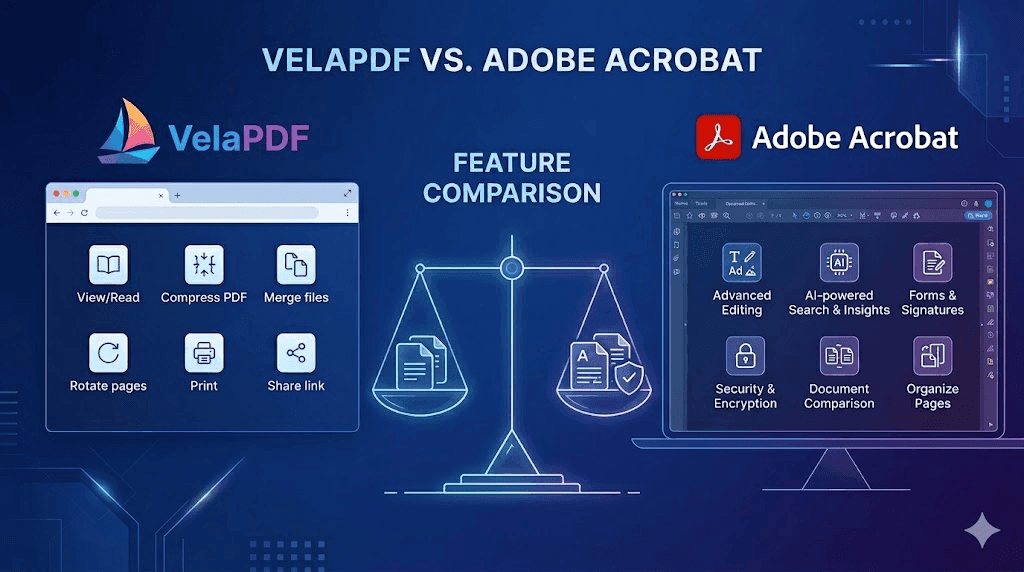
VelaPDF vs Adobe Acrobat: Which PDF Tool Offers Better Value?
"VelaPDF vs Adobe Acrobat: Which PDF editor is better in 2026? VelaPDF offers a fast, free, browser-based solution perfect for students and freelancers, while Adobe Acrobat delivers powerful editing, AI tools, and enterprise features at a higher price. Full comparison of pricing, features, ease of use, and security."
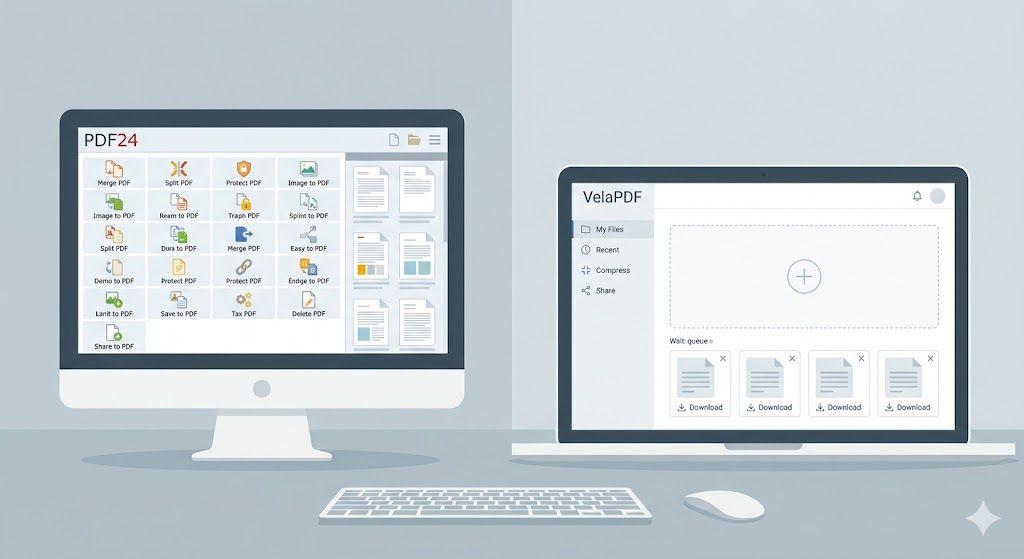
PDF24 vs VelaPDF: Which Free PDF Tool is Better in 2026?
Finding a free PDF tool that actually works — no watermarks, no daily limits, no hidden fees — is harder than it sounds. This side-by-side breakdown of PDF24 vs VelaPDF cuts through the noise so you can pick the right one for your device, workflow, and deadline.